How I set up my iPhone for hands-free mouse controlCursor and AssistiveTouch settings
By Corbin Halliwill
It only takes two steps to add a cursor to an iPhone, but a few extra ones can dramatically increase efficiency. Here’s my ideal setup, after configuring hundreds of devices for friends and customers.
These settings work with the MouthPad and with any other Bluetooth pointing device, such as a mouse, GlassOuse, or Quha Zono. These settings are also interchangeable across iOS platforms. Throughout this post, anywhere it says “iPhone” or “iOS,” you can substitute “iPad” or “iPadOS.”
The placement of the settings in this post comes from iOS 27.0.1. These placements sometimes change between updates. If you can’t find something listed below, you may have a different version of iOS (you can check this in Settings › General › About › iOS Version). If so, try the search bar at the bottom of Settings instead.
You have probably already paired your pointing device with your phone. If not, do so in Settings › Bluetooth, then find your device under Other Devices. Tap it, and select Pair.
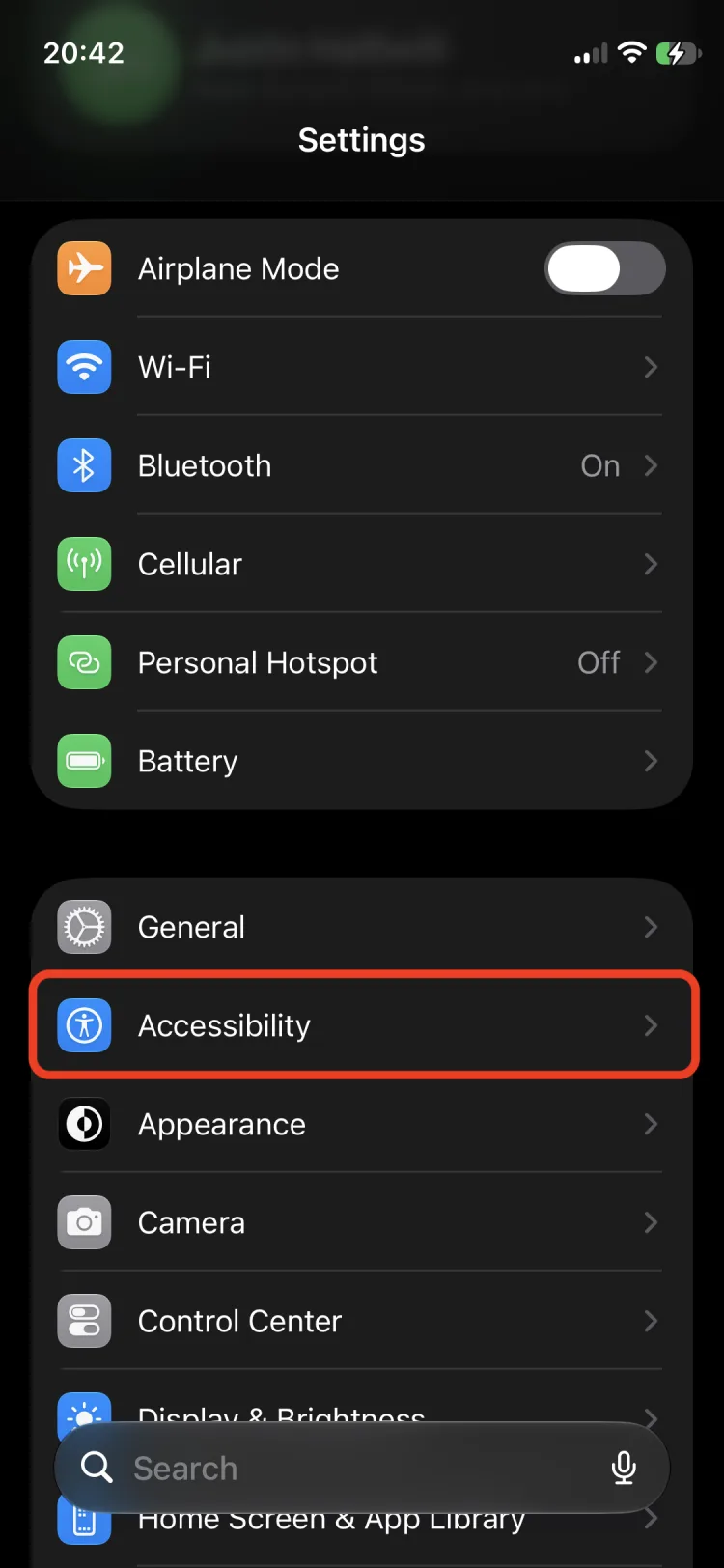
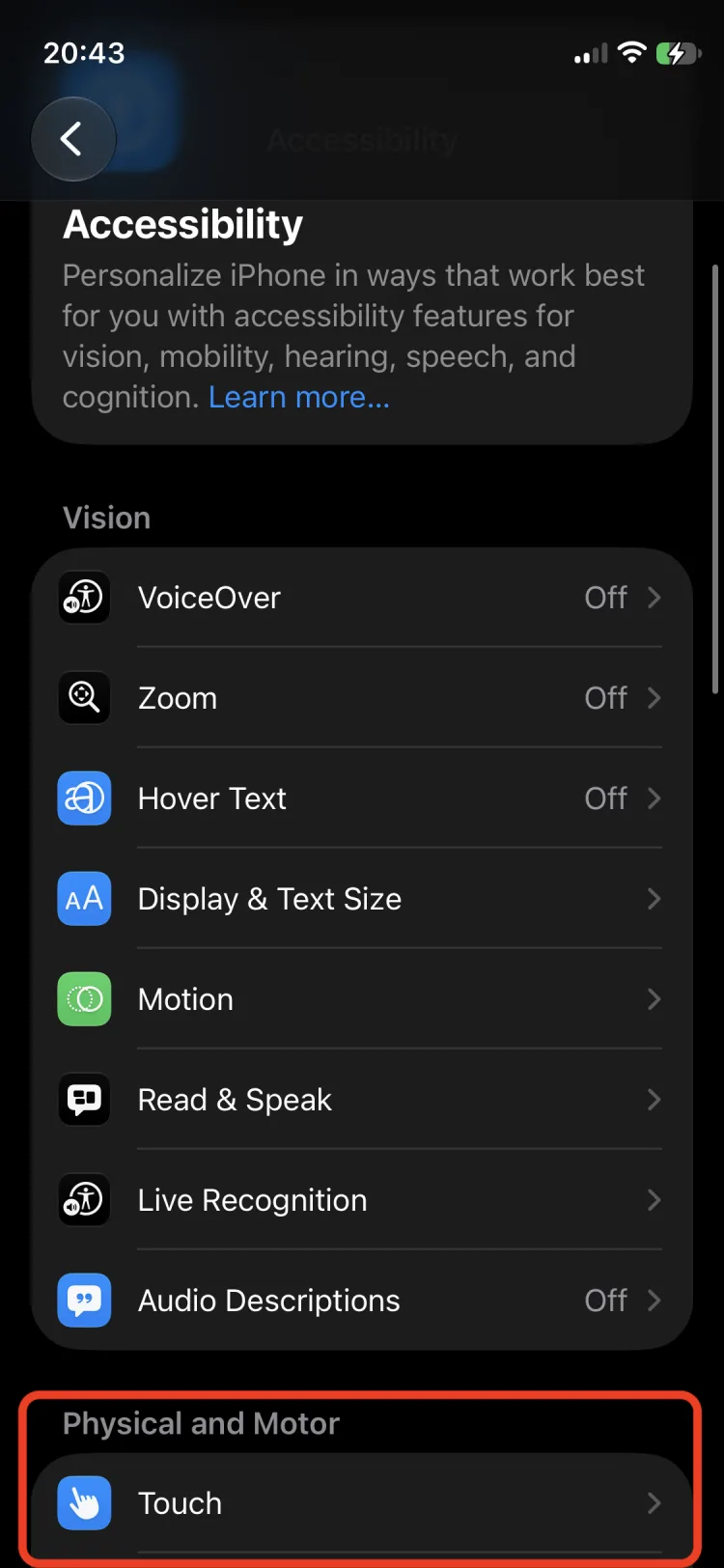
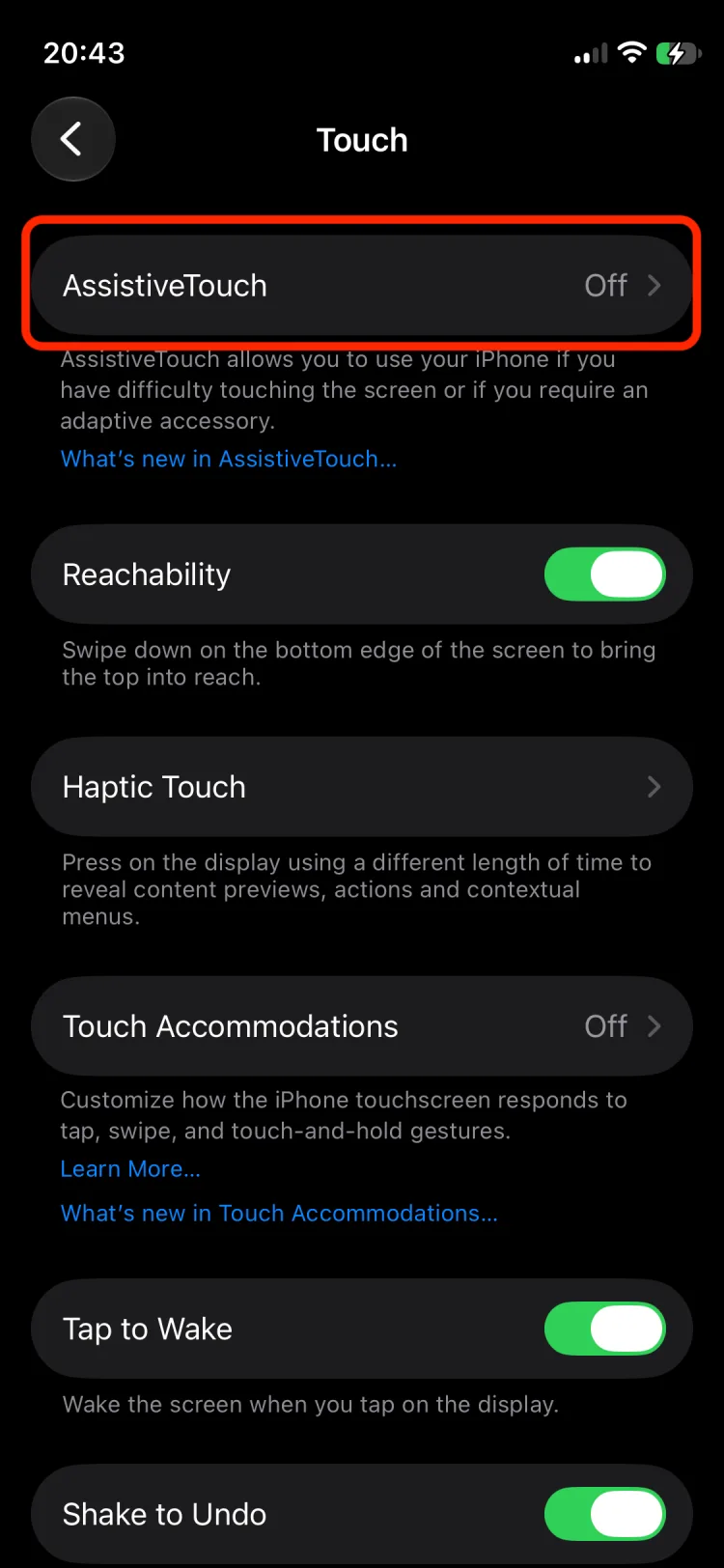
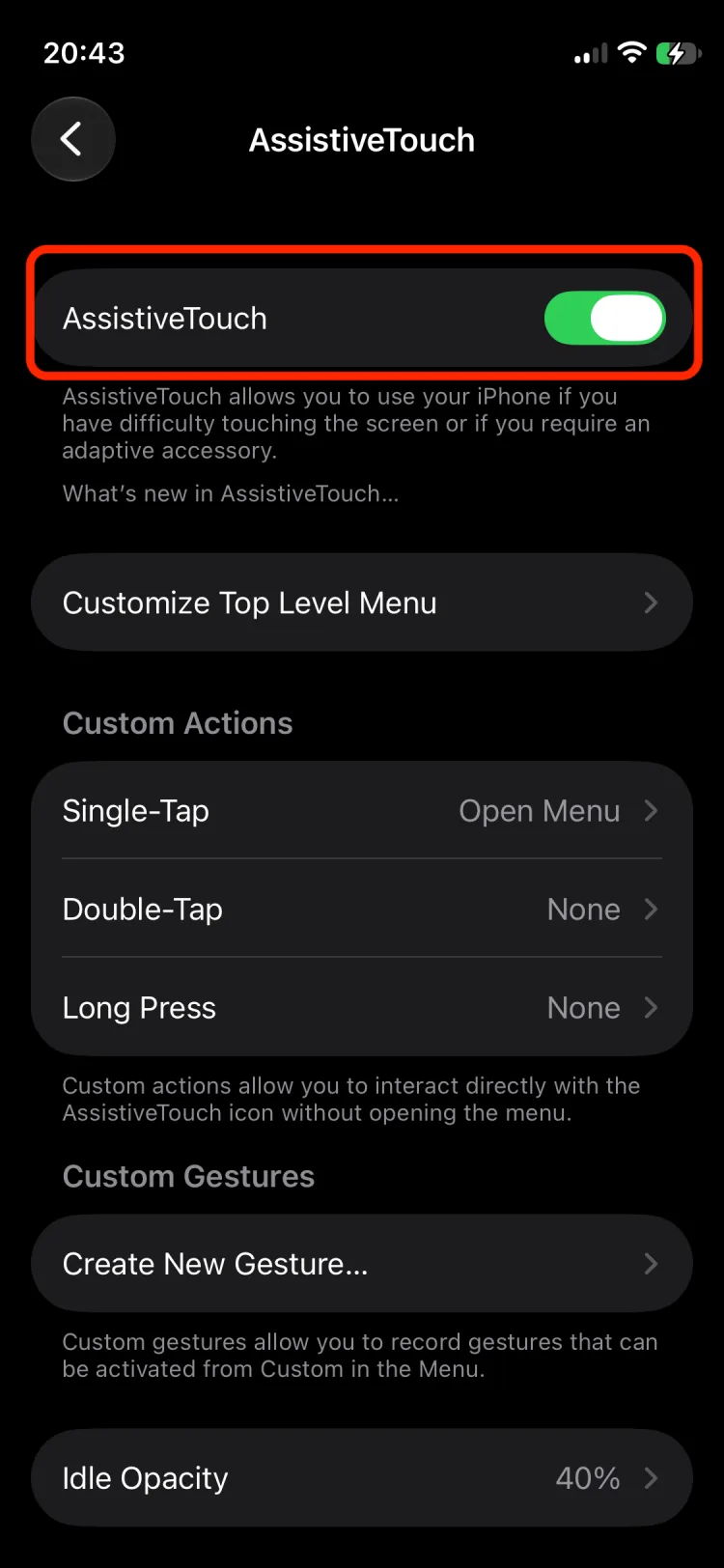
Your pointing device is now connected, but no cursor will show up. The critical step is to go to Settings › Accessibility › Touch › AssistiveTouch › AssistiveTouch. You must set that toggle to On. You should now see a circular cursor appear on your screen. If you don’t see it right away, try using your pointing device to move the cursor, and it should appear.
This is the minimum—but read on to learn the settings that get the most from your pointing device and your iPhone.
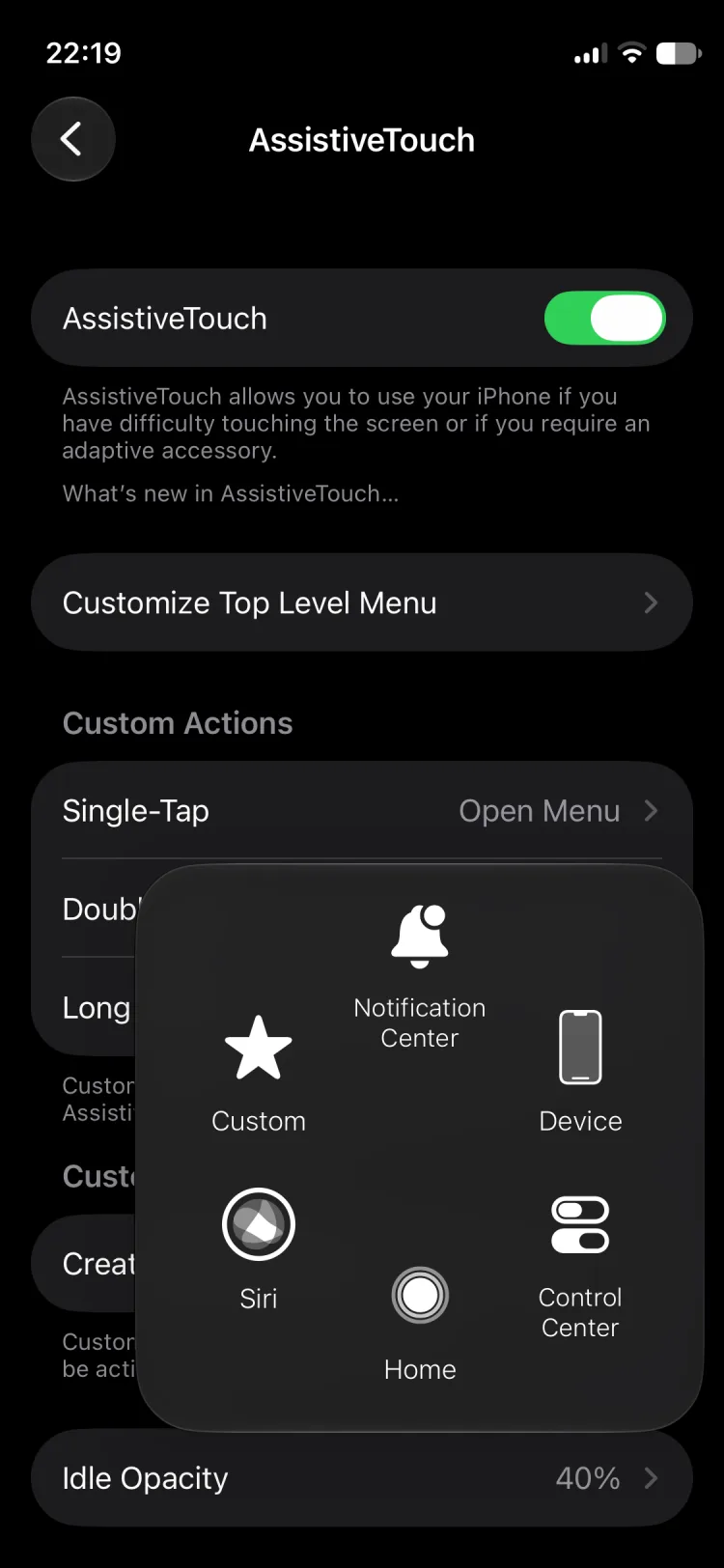
AssistiveTouch adds a floating menu button with a number of shortcuts for iPhone interactions. You can customize this menu to meet your needs.
The default shortcuts include:
—Notification Center: Shows incoming messages and other notifications, equivalent to swiping down from the top of the screen.
—Device: Lock the screen, rotate it, adjust the volume, and more.
—Control Center: Quick access to airplane mode, focus mode, brightness, sound, etc., equivalent to swiping down from the top-right corner of the screen.
—Home: Critically helpful shortcut I use all the time to get back to the Home Screen, equivalent to swiping up from the bottom of the screen.
—Siri: For Siri users who don’t want their phone always listening for “Hey Siri.”
I find the AssistiveTouch menu button to be distracting, so I configure it to fade slightly when I’m not using it. In Settings › Accessibility › Touch › AssistiveTouch, I set Idle Opacity to around 25%. But experiment with it to find what you like.
I leave Always Show Menu set to On. Even though the button is distracting when I don’t want to see it, I do want access to the shortcuts. If I set it to Off, the button would disappear, and I couldn’t navigate around the phone as quickly.
A useful setting on the same page is Confirm with AssistiveTouch. For anything that traditionally uses the side button for confirmation, such as confirming Face ID for Apple Pay, this lets you use the AssistiveTouch button instead.
One setting I find ergonomic for the MouthPad, and that works with any pointing device that has an easy right-click, is to set the App Switcher to a right-click (a Sip gesture on the MouthPad). This is equivalent to swiping up from the bottom of the screen to view open applications. To try this, go to Settings › Accessibility › Touch › AssistiveTouch › Devices, then click on your connected pointing device. Next, select Customize Additional Buttons…. At this point, perform a right-click with your device. It will recognize the input and show you a selection menu titled Button 2 (this means right-click). Set it to System › App Switcher. Then exit using < in the top-left of the screen.
Apple offers two click types for your left-click. I tend to leave it at the default, which is Settings › Accessibility › Touch › AssistiveTouch › Perform Touch Gestures set to On. In general, the differences between On and Off are small. Some apps and some native controls will feel different, so you can try them both with low risk. On occasion, I’ve found some websites behave better with Perform Touch Gestures set to Off, so keep that in mind if you ever run into buttons on the web that you cannot click. It’s clear which mode you’re in because the cursor changes shape (On is a circular cursor; Off is a more traditional triangular computer cursor).
If your pointing device doesn’t offer left-clicks (MouthPad users can skip this), then you might opt to use dwell clicks. These are also on the same page, Settings › Accessibility › Touch › AssistiveTouch › Dwell. Flip that to On. When you keep your cursor steady in one spot, you’ll see a white circle that animates progress around the perimeter of the cursor. When the circle completes, the cursor left-clicks.
Within the same AssistiveTouch settings page, you can find cursor speed—it’s a slider at Settings › Accessibility › Touch › AssistiveTouch › Tracking Sensitivity. This one requires some trial and error to get right because all pointing devices will have different native cursor movement speeds.
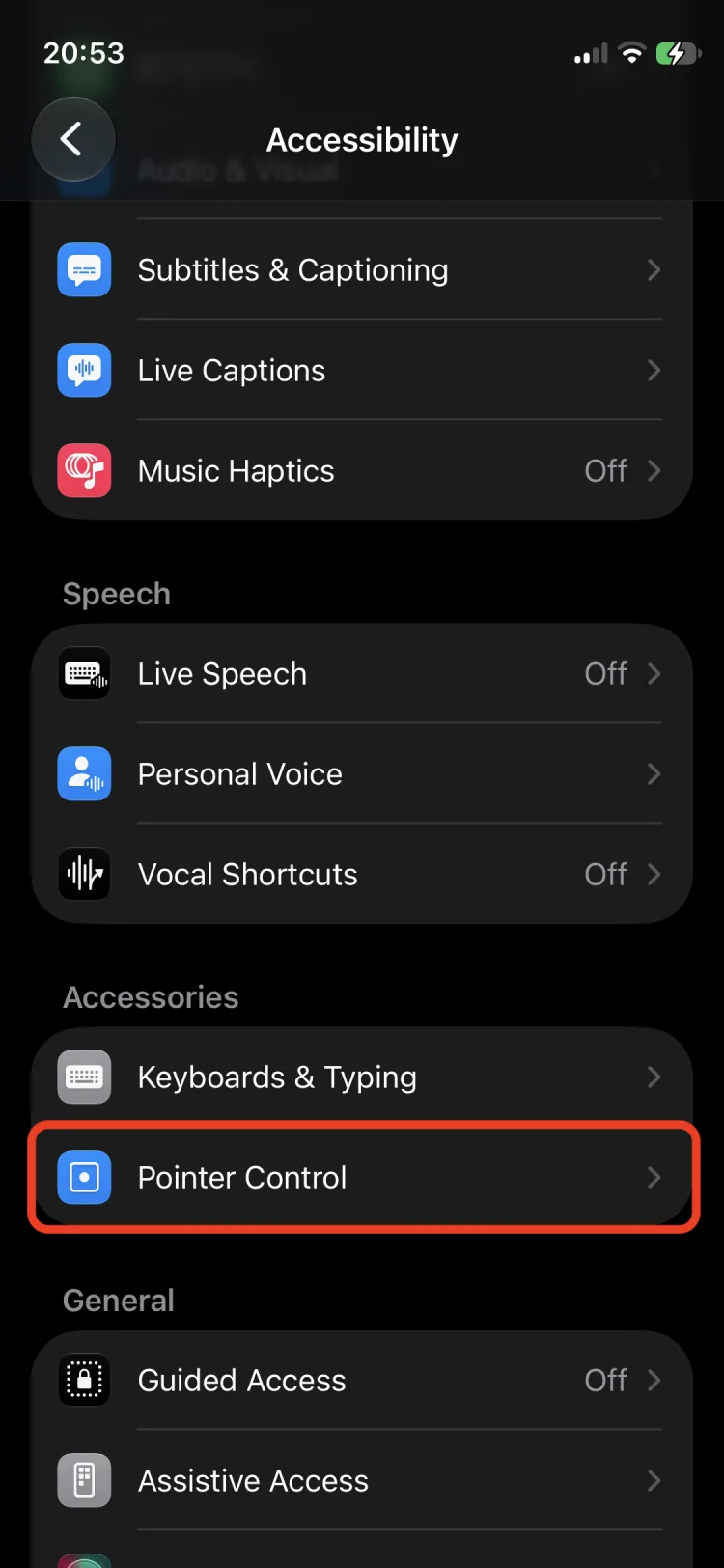
The next menu only appears when a pointing device is connected to your iPhone. It’s at Settings › Accessibility › Pointer Control, which is toward the bottom of the accessibility settings, under Accessories.
These are mostly self-explanatory, but here are my preferences. I find the default cursor to be subtle and hard to see. I like to set a small cursor with a strong border and high contrast. This way it’s easy for me to see but doesn’t cover too much of the screen. Specifically, I set:
—Increase Contrast to On
—Pointer Size to ~20%
—Color to Blue
—Color › Border Width to ~80%
In this menu, you’ll also want to set Scrolling Speed to something comfortable for you (assuming you have access to convenient scrolling input).
As far as I can tell, Automatically Hide Pointer makes no difference while AssistiveTouch is on, so I ignore it.
This is particularly useful if you use an iPhone and an iPad, but it’s also a good practice in case you need to replace your iPhone unexpectedly. Set Settings › Accessibility › Share Accessibility Settings › Sync to iCloud to On. This will store your settings to the cloud, and let all your devices stay in sync as you discover new preferences.
If you use your phone hands-free, you probably use Siri, so make sure it works when your phone is locked. In Settings › Face ID & Passcode, under Allow Access When Locked, set Siri to On. Devices with Touch ID list this under Settings › Touch ID & Passcode.
I set my phone to never auto-lock, and instead I use the lock shortcut in the AssistiveTouch menu: Device › Lock Screen. To save battery, keep auto-lock on but set a longer delay in Settings › Display & Brightness › Auto-Lock.
I don’t use this, but I know some people like it. It’s self-explanatory, and if you want it, turn it on in Settings › Accessibility › Touch › Call Audio Routing › Auto-Answer Calls › Auto-Answer Calls.
If you notice your cursor snapping to buttons or items on the screen, and want to turn this off for more organic cursor control, go to Settings › Accessibility › Touch › AssistiveTouch › Snap to Item. Set it to Off.
If you share your iPhone or iPad with someone else and the AssistiveTouch button bothers them, you can configure a shortcut to hide and show it: Settings › Accessibility › Accessibility Shortcut › AssistiveTouch. Now, if you triple-press the side button, it will toggle AssistiveTouch on and off.
—Change one setting at a time. It’s easy to forget what you changed if you adjust several at once.
—Lost a setting? Use the search bar at the bottom of Settings. It’s faster than digging through menus.
—Nothing is permanent. Any of these can be switched back, so experiment freely to find your perfect setup.
I hope you found this post helpful. These are the settings I use every day with my MouthPad, a custom-fit mouthpiece that turns small tongue and head movements into cursor control, clicks, and scrolling. If you’re curious what that looks like, see how it works →
If there’s a setup you’d like me to cover next, on iPhone or any other device, email me at support@augmental.tech.
Corbin Halliwill is a founding engineer at Augmental, makers of the MouthPad. He personally onboarded the first 40+ MouthPad users and has helped 100+ more set up their phones, tablets, and computers. He has used a MouthPad with his own iPhone since 2022.